Summary
The
user interface
Home
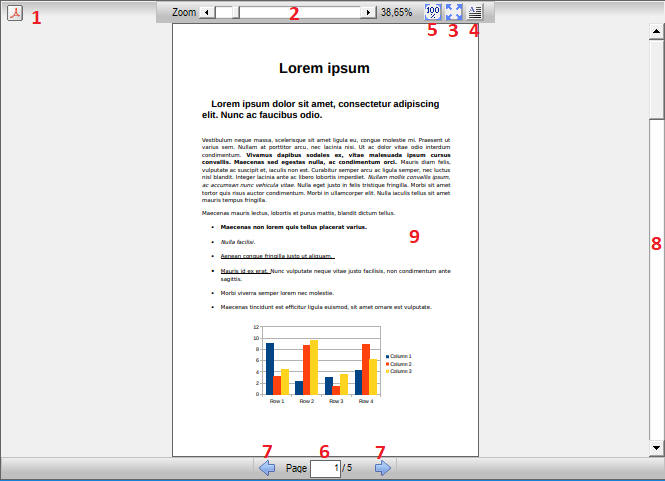
To interact with the control, the user can use:
-
Open PDF button: Clicking this button open a file picker to load a PDF
-
Display zoom: allows you to enlarge or decrease the display area
-
Adapts the display to the size of the control: Reverts the page to full display after zooming
-
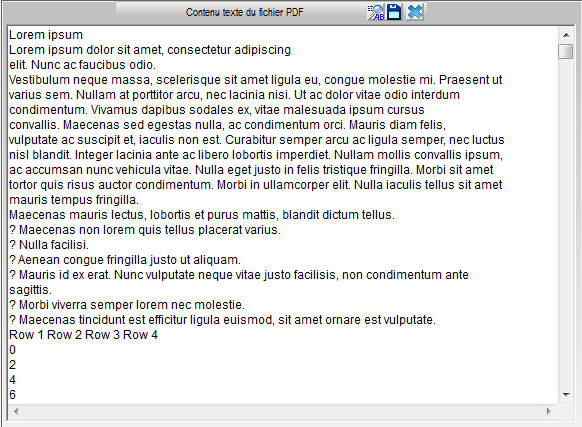
Displays the text content of the PDF file:
clicking the iconsaves the text If the file does not contain usable text and OrdoOCR is installed, the control offers to attempt character recognition on the document (OCR). It is also possible to request an OCR by clicking on the button

-
Displays the document at its actual size (100% zoom)
-
Displays or sets the current page number
-
Page-to-page move arrows
-
The Page UP and Page Down keys on the keyboard double these arrows
-
-
Scrollbar also allow to move within the document
-
Page display: it can be moved, especially when zooming
-
with the mouse
-
with keyboard arrows
-
Double-click readapts the display to the size of the control
-
The mouse wheel is managed according to the position of the cursor:
-
on the display of the page (9):
-
scrolls through the pages of the document
-
If Shift (ñ) is pressed: scrolls up or down the page
-
If the right mouse button is pressed: scrolls to the right or left
-
If Ctrl is pressed: Changes the zoom factor
-
-
on the other parts of the control:
-
scrolls through the pages of the document
-